 _____                         ___       _
|_   _|__ _ __ _ __ ___   ___ / _ \   __| | ___  _ __
  | |/ _ \ '__| '_ ` _ \ / _ \ | | | / _` |/ _ \| '_ \
  | |  __/ |  | | | | | | (_) | |_| | (_| | (_) | | | |
  |_|\___|_|  |_| |_| |_|\___/ \___/ \__,_|\___/|_| |_|
Please note that in this early stage, it still has a few minor quirks and teething troubles here and there. However, it is under active development and being refined continuously.
1. Why Term’O’don?
Managing multiple headless Debian servers while staying connected to the Fediverse usually presents an annoying trade-off: either keep heavy browser tabs open on remote machines or juggle desktop clients that run counter to a pure, keyboard-driven terminal workflow.
Most modern social web frontends are overloaded with JavaScript trackers, memory-hungry rendering engines, and layouts that crumble when accessed over restricted connections or slow SSH sessions. For many of us, the terminal simply is the natural habitat: instant responsiveness, crisp green-on-black telemetry, and strict keyboard ergonomics.
This mindset gave rise to Term’O’don — not as a bloated commercial suite, but primarily as a personal fun project born out of a passion for Debian, Python, and retro command-line aesthetics. It is built around four core principles:
- Uncompromising Terminal-Green HUD: A high-contrast dark green look inspired by classic sysadmin dashboards and terminal monitors — zero distractions, zero visual noise.
- Live WebSocket Streaming & Dual Fallback: Real-time streaming directly hooked into your Mastodon instance’s streaming API, paired with background polling routines to keep you updated even during connection hiccups.
- Effortless Keyboard Navigation & Posting: Fast, fluid browsing with simple arrow keys and streamlined posting directly from the terminal without leaving your CLI session.
- Minimal Headless Footprint: A lightweight Python 3 stack powered by Textual and httpx, packaged cleanly for Debian so it can comfortably sit inside a persistent
tmuxorscreensession 24/7.
2. Installation (Debian / Ubuntu)
Term’O’don is distributed as an official Debian package via my dedicated APT repository (repo.blake-hofer.net) with support for amd64, arm64 (Raspberry Pi), and architecture-independent systems.
# 1. Ensure curl is installed
sudo apt update && sudo apt install -y curl

# 2. Import repository signing key directly as ASCII keyring
sudo install -m 0755 -d /etc/apt/keyrings
sudo curl -fsSL https://repo.blake-hofer.net/KEY.gpg -o /etc/apt/keyrings/blake-hofer.asc
sudo chmod 644 /etc/apt/keyrings/blake-hofer.asc

# 3. Add Blake-Hofer APT repository
echo "deb [signed-by=/etc/apt/keyrings/blake-hofer.asc] https://repo.blake-hofer.net/ stable main" | sudo tee /etc/apt/sources.list.d/blake-hofer.list

# 4. Update package index & install
sudo apt update
sudo apt install -y termodon

# 5. Launch Term'O'don
termodon
Pro tip: On the very first run, termodon detects if a configuration file is missing and automatically guides you through a terminal-based initial setup wizard asking for your Mastodon instance and access token.
3. How to Get Your Mastodon Access Token
Term’O’don requires an access token to authenticate against your Mastodon server’s API, establish the live feed, and post new statuses. You can generate one in less than a minute through your instance’s web interface:
- Log into your Mastodon account in your browser (e.g.,
https://social.blake-hofer.netor your respective home instance). - Open Preferences (the gear icon ⚙️) or navigate to Edit profile.
- In the left sidebar menu, click on Development (
/settings/applications). - Click the New application button in the top right.
- Fill in the form:
- Application name: Enter
Termodon(or any name you prefer). - Website: Can be left blank or pointed to your own site.
- Redirect URI: Leave the default
urn:ietf:wg:oauth:2.0:oobuntouched.
- Application name: Enter
- Scopes / Permissions: Because Term’O’don both monitors your feed and lets you compose/publish toots directly from the terminal, ensure both
readandwriteare checked (or specificallyreadandwrite:statuses).pushis not required. - Scroll to the bottom and click Submit (or Save changes).
- Click on the newly created application name in the list. Under Your access token, copy the long alphanumeric token string.
Paste this token into the terminal prompt when Term’O’don starts for the first time, or place it directly into your configuration file.
4. Keybindings
Term’O’don is designed from the ground up to keep your hands on the keyboard at all times:
| Key | Action | Description |
|---|---|---|
↑ / ↓ |
Feed Navigation | Browse through the incoming status stream. The telemetry inspector updates simultaneously. |
Tab |
Switch Pane | Toggles input focus between the feed stream (left) and the status inspector (right). |
PgUp / PgDn |
Scroll Payload | Scrolls through long post bodies or raw payloads line-by-line inside the inspector pane. |
O |
Open Media | Launches attached media files using your system’s default terminal viewer (e.g., timg or chafa). |
R |
Force Refresh | Manually queries the timeline REST API for fresh posts. |
Q / Ctrl+C |
Quit | Exits Term’O’don cleanly and returns you to your shell. |
5. Navigation & Usage
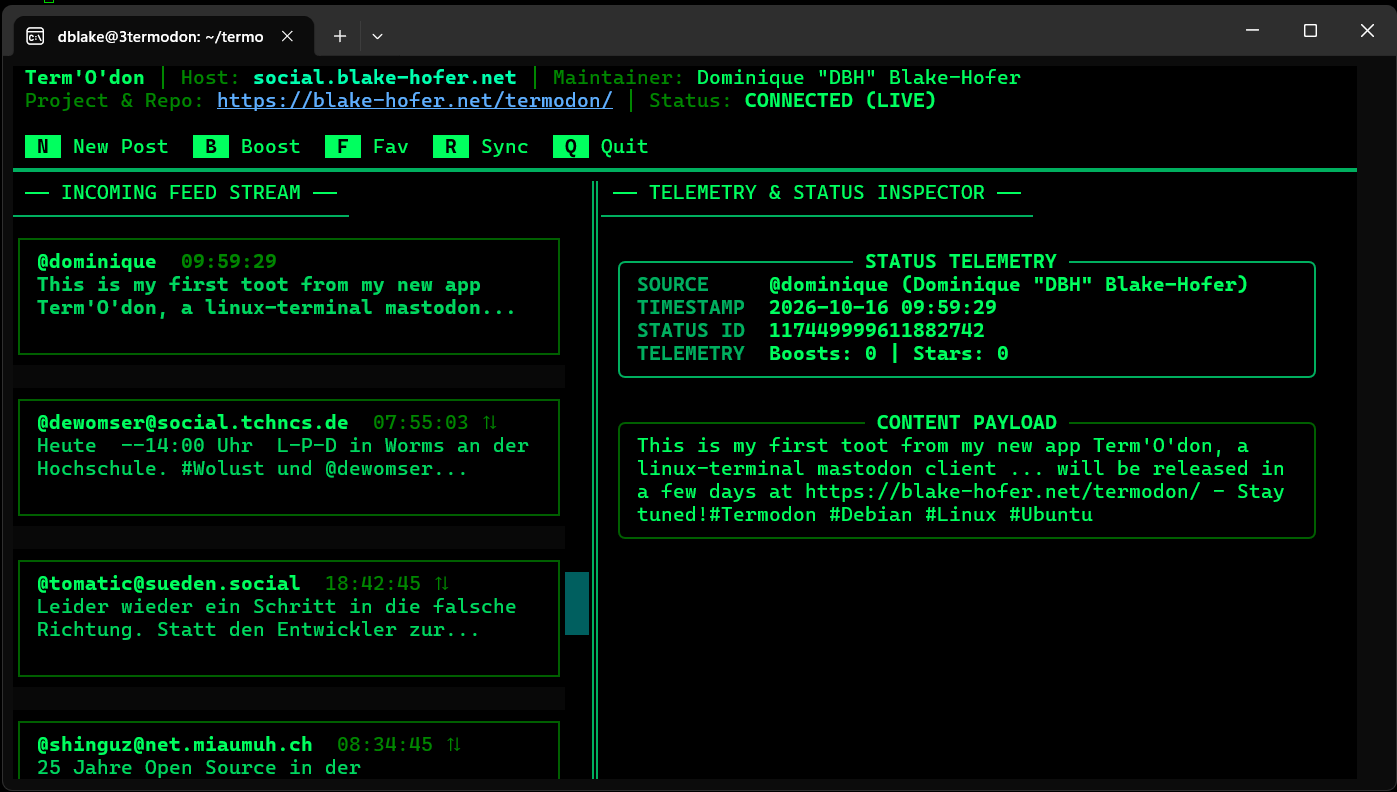
The dashboard is split into an intuitive dual-pane operations console:
- Top Telemetry Bar: Displays WebSocket connection health, active Mastodon instance, maintainer credits, and instant key shortcuts.
- Left Pane (Feed Stream): Chronological stream of incoming posts featuring author tags, timestamps, boost flags, and clean preview snippets.
- Right Pane (Inspector): Full payload inspection showing author handle, unique status ID, interaction metrics (reblogs/favorites), sensitive content warnings, and media links.
Manual Configuration File
If you prefer to edit credentials manually instead of using the setup wizard, create or modify ~/.config/termodon/config.ini (or system-wide in /etc/termodon/config.ini):
[mastodon]
instance = social.blake-hofer.net
access_token = YOUR_MASTODON_ACCESS_TOKEN
6. License & Project Info
Term’O’don is free, open-source software released under the MIT License. Feel free to use it, adapt it to your own environments, inspect the source, or build upon it.